Setting Up Google Local: A Practical Google Business Profile Guide
Help customers find your business, understand your services and contact you.
Google Local, previously called Google My Business, is now Google Business Profile. It is a free way for eligible businesses to appear on Google Search and Google Maps.
A useful profile explains what you do in language your customers recognise. That means listing specific services, answering common questions and checking what people actually search for.
Do not assume customers use the same words you use within your business.
Join the free Cofi Business Network
Let’s take a closer look at some benefits of using a Google Business Profile account, if you have any questions please email info@digitalsolutions.help
1. Check Whether Your Business Is Eligible
Google Business Profile is generally for businesses that meet customers in person: either at their premises or by travelling to customers.
An online-only business is not normally eligible.
Before creating a profile, search Google and Google Maps for your business. If a listing already exists, claim it or request access rather than creating a duplicate.
Start here:
2. Add Accurate Business Details
Use your real business name as customers know it. Do not add a list of services, towns or keywords to the name simply to attract searches.
Complete the relevant sections:
- Business name.
- Primary business category.
- Additional categories, where appropriate.
- Address or service areas.
- Telephone number.
- Website.
- Opening hours and holiday hours.
- Business description.
- Services.
- Booking links and other available options.
Choose the category that best describes your main business. Additional categories should represent genuine parts of the business.
Your category explains what kind of business you are. Your services explain what customers can hire you to do.
3. Decide Whether Customers Can Visit Your Address
Choose the option that reflects how your business operates.
Customers visit your premises: show your eligible business address and accurate customer-facing hours.
You travel to customers and do not receive them at your premises: set up a service-area business and hide your address from the public.
You do both: your business may qualify to show its address and service areas.
Do not use a borrowed address or virtual office to appear in another town.
Adding a town to your service areas does not guarantee that you will rank there.
4. Verify Your Business
Follow the verification instructions Google offers for your profile.
Google chooses which verification methods are available. These may include video, telephone, email or other methods. You cannot assume telephone or email verification will be offered.
Check your details before starting. Use the genuine business location and be ready to demonstrate that you operate the business.
5. Understand What “Services” Means
Services are the individual jobs, treatments or types of work customers can pay your business to provide.
A broad description such as “building work”, “beauty treatments” or “software development” may leave customers unsure whether you offer what they need.
Break your offering into clear, distinct services.
| Business | Broad wording | Examples of specific services |
|---|---|---|
| Builder | Building work | Kitchen installation, bathroom renovation, garden wall repairs |
| Hairdresser | Hair services | Hair colouring, highlights, hair extensions |
| Cleaner | Cleaning | End of tenancy cleaning, office cleaning, carpet cleaning |
| Garage | Vehicle services | MOT testing, car servicing, brake repairs |
| Software company | Software development | Booking software development, stock management software, customer portal development |
| Photographer | Photography | Wedding photography, business headshots, product photography |
These are examples to adapt, not a verified list of popular searches. Only add services you actually provide.
Services and Service Areas Are Different
Services: what you do.
Service areas: where you travel to serve customers.
For example, “carpet cleaning” is a service. “Bedford” is a service area.
Services and Products Are Different
Use the Services section for the work you offer. Use product features for eligible products where those features are available.
The services editor supports service names, descriptions and prices. Do not assume it provides an image or website-link field for each service.
6. Find the Words Customers Actually Use
A keyword is a word or phrase someone searches for. A key phrase is usually a more specific combination of words.
For example:
- “Cleaner” is broad.
- “End of tenancy cleaning” describes a particular service.
- “End of tenancy cleaning Bedford” adds a location.
- “How much does end of tenancy cleaning cost?” asks a question.
Customers may search for the service, the problem they need solved, the result they want or a business nearby.
Start with customer language, then check it against evidence.
Listen to Enquiries
Look at emails, telephone enquiries and questions customers ask.
Do they say “workflow automation”, or do they say “we keep entering the same information twice”?
Do they ask for “horticultural maintenance”, or “someone to cut the hedge”?
Keep a list of their wording. It can help you write clearer service descriptions and website content.
Check Google Business Profile Performance
Open your verified profile and look for Performance and the search terms people used to find you.
This shows phrases that have already brought your profile into search results. It does not show every possible search or every opportunity you are missing.
Separate searches for your business name from searches for a service.
Check Google Search Console
If your website is connected to Google Search Console:
- Open the Performance report.
- Look at Queries.
- Review the phrases generating impressions and clicks.
- Check which pages appear for those phrases.
- Look for relevant services or questions your website does not explain clearly.
An impression means your website appeared in a search result. A click means someone selected it.
Search Console covers your website’s search performance; Business Profile Performance covers your profile.
https://search.google.com/search-console
Use Google Keyword Planner
Google Keyword Planner can suggest related phrases and provide estimated search demand.
Enter a service or your website, then set the relevant location and language.
https://business.google.com/en-all/ad-tools/keyword-planner
It is part of Google Ads and may require account setup and billing details for access. Its estimates are a guide, not a promise of enquiries.
Look at Search Suggestions
Google’s suggested searches and related questions can give you ideas about customer wording.
Use them as starting points for research. A suggestion does not prove that a phrase has high search volume.
Choose Relevant Phrases
Before using a phrase, ask:
- Does it describe something we provide?
- Would someone searching it be a suitable customer?
- Does it fit the area we genuinely serve?
- Can we explain it clearly?
- What evidence supports choosing it?
A popular phrase is of little use if it attracts people who want something you do not offer.
7. Add Clear Service Names and Descriptions
Open your Business Profile and select Edit services.
Choose an appropriate suggested service or, where available, add a custom service. Add a description and price if relevant, then save.
Review existing entries first so you do not create duplicates.
Write a Simple Service Name
Use wording customers understand.
For example:
End of tenancy cleaning
Avoid names such as:
BEST CHEAP CLEANING BEDFORD CLEANERS NEAR ME
Do not put telephone numbers or prices in custom service names. Use the appropriate fields.
Explain What the Service Includes
A useful description answers:
- What do you provide?
- Who is it for?
- What does it include?
- What problem does it solve?
Example: End of tenancy cleaning
“End of tenancy cleaning for tenants, landlords and letting agents. The service covers agreed areas of the property, including kitchens, bathrooms and floors, with optional extras confirmed before booking.”
Example: Booking software development
“Custom booking software for businesses managing appointments, staff availability and customer bookings. Features are agreed around your process and can include reminders, online payments and reporting.”
These are writing examples. Adapt them to your actual service and scope.
Use Keywords Naturally
Include the relevant service phrase where it makes sense. Do not repeat it in every sentence.
Mention a location when it helps customers understand your coverage. Avoid copying long lists of towns into every description.
One clear entry per distinct service is more useful than several entries with slightly different versions of the same name.
8. Write a Helpful Business Description
Explain your main services, who you help and what makes your business useful.
Use plain language and relevant phrases naturally.
Avoid keyword lists, exaggerated claims and repeated town names. Keep links and promotional prices out of the business description; use the appropriate profile features instead.
9. Connect Your Services to Your Website
Your profile and website should tell the same story.
For each main service, your website should explain:
- What the service is.
- Who it is for.
- What is included.
- Relevant examples of your work.
- Where it is available.
- How to enquire or book.
Where a profile feature supports a link, choose the page that best matches the topic.
A post about bathroom renovation should ideally link to your bathroom renovation page rather than leave visitors searching through the homepage.
10. Use Your News or Blog Page to Answer Customer Questions
Your news page can explain topics that need more space than a profile entry.
Useful article ideas include:
- What does the service include?
- How much does it cost, and what affects the price?
- How long does the work take?
- How should a customer prepare?
- Which option suits which situation?
- What problem did a recent project solve?
For example, a cleaner might explain an end of tenancy cleaning checklist. A software company might explain how to replace a spreadsheet booking process.
Use a clear title, answer the question properly and link to the relevant service page.
Avoid publishing several nearly identical articles just to change the keyword or town name.
Helpful content can support your website’s visibility, but publication alone does not guarantee rankings.
11. Add Photos, Videos and Useful Updates
Show customers your business and the work you provide.
Useful material includes:
- Completed projects.
- Products you sell.
- Your team.
- Your premises, where relevant.
- Demonstrations.
- Short videos explaining a service.
- Before-and-after photographs, where appropriate.
Get permission before featuring customers or their property.
Use profile posts to share a project, explain a service, announce an event or highlight a genuine offer. Include a clear next step and an appropriate link where supported.
Choose a manageable posting routine. There is no universal number of posts that guarantees better rankings.
12. Ask for Honest Reviews
Invite customers to describe their genuine experience.
Do not offer rewards for reviews or ask only customers you expect to leave positive feedback.
Reply professionally and avoid sharing private customer information.
Reviews help prospective customers assess your business. Let customers choose their own wording.
13. Understand What Affects Local Visibility
Google describes local ranking mainly in terms of:
Relevance: how well your business matches the search.
Distance: how far your business is from the person searching.
Prominence: how well known your business is.
Accurate information, clear services, a useful website and genuine reviews can contribute to a stronger presence.
No profile setup, keyword list or posting schedule can guarantee first place or a page-one position.
Quick Setup Checklist
- Search for an existing listing before creating a profile.
- Confirm the business is eligible.
- Use the genuine business name.
- Choose accurate business categories.
- Set the address and service areas correctly.
- Check the telephone number and website.
- Complete verification.
- Add accurate opening and holiday hours.
- Explain the business clearly.
- List each distinct service.
- Add useful service descriptions.
- Check customer wording and available search data.
- Add relevant photos and videos.
- Check booking and other available links.
- Open the public profile and review what customers can see.
Ongoing Maintenance Checklist
Each Week
- Check for inaccurate or unexpected profile changes.
- Reply to new reviews.
- Add a useful update or recent photograph when you have something relevant.
- Check that offers and events are current.
Each Month
- Review Business Profile Performance.
- Review website queries in Search Console.
- Check your services against what you currently provide.
- Improve unclear descriptions.
- Answer a relevant customer question on your website.
- Check links, contact details and upcoming holiday hours.
- Record enquiries and bookings so you can assess results.
The aim is to help the right people find you, understand your services and take the next step.
Need Help?
Digital Solutions helps businesses improve processes with custom software, mobile apps, automation and digital systems.
Email: info@digitalsolutions.help
For practical ideas and support from other business owners:
Explore the free Cofi Business Network

Go to create a profile. (click the link)
Enter the name of your business. You may also be able to select your business from the list of suggested businesses as you type.
- If you get a message that someone else has already verified the business, request ownership of the Business Profile.
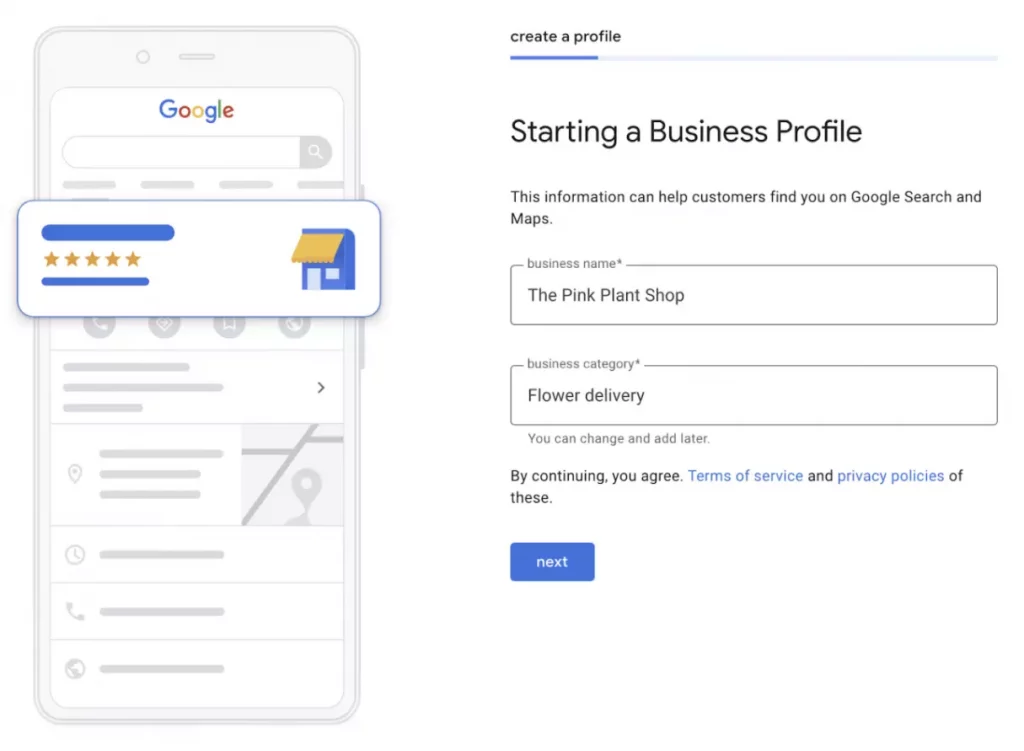
Search for your business category.
Click Next.
Choose whether you have a location that customers can visit. CLICK NO HERE
Enter the service area of your business.
- You can set your service area based on the cities, postcodes or other areas that you serve. You can add up to 20 service areas.
- Tip: We recommend that you don’t extend the boundaries of your overall area farther than 2 hours driving time from where your business is based. For some businesses, it may be appropriate to have a larger service area.
Enter a phone number and website URL.
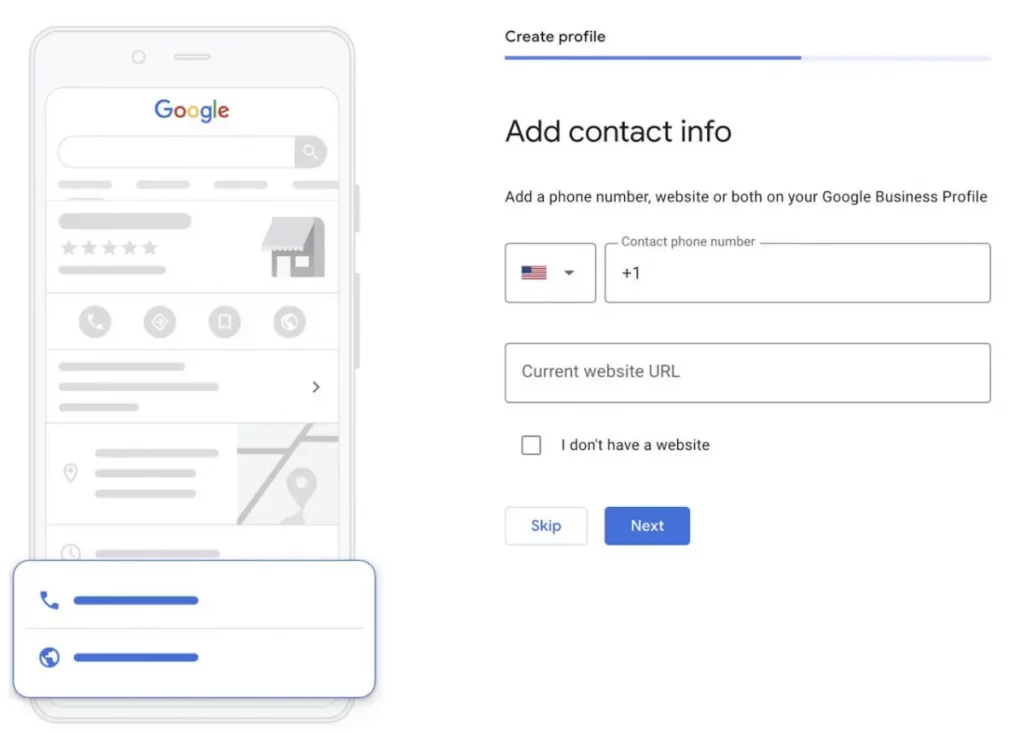
Click Next.
Click Finish.
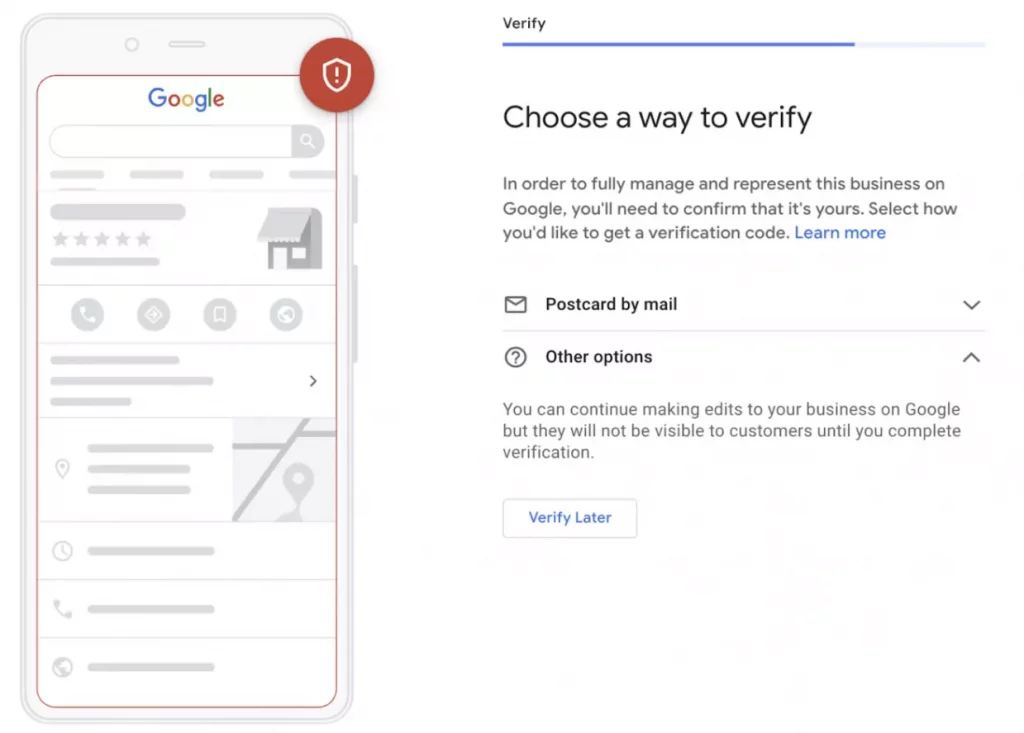
Select a verification option. GO FOR PHONE OR EMAIL VERIFICATION
- Tip: We recommend reviewing your information before you request verification.
- To verify now: At the top, find the red banner and click Verify now.
- To verify later: Click Verify later Later.
- If you’re not authorised to manage the Business Profile for the chain: Find the person in your organisation who’s authorised and continue the process.
Whats next
1. Make Sure Your Profile Is Complete
A complete profile on Google Business can do wonders for your traffic and help you build trust.
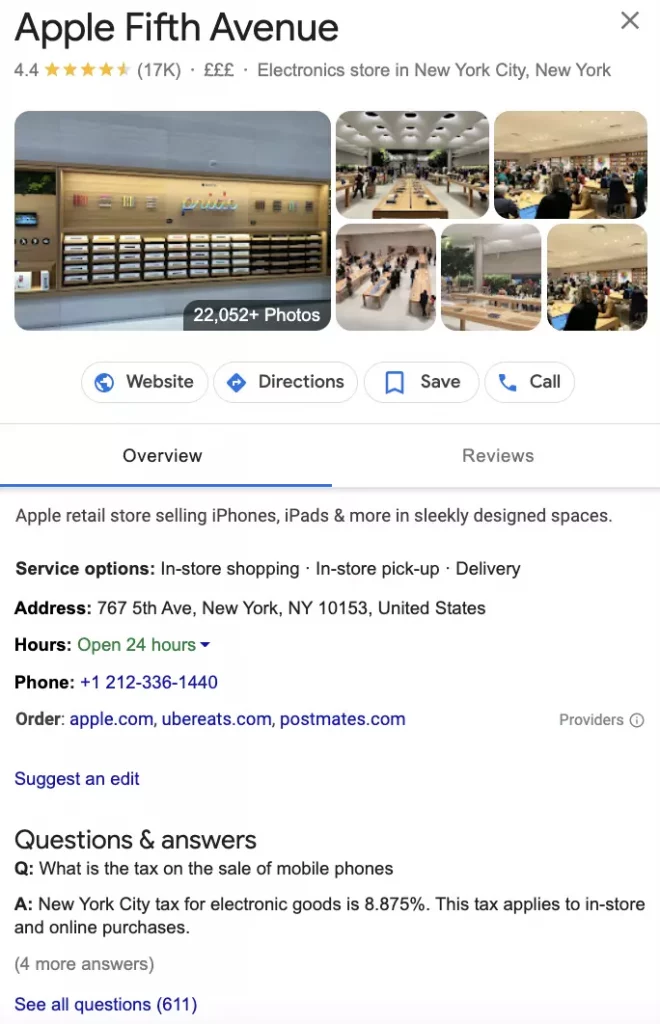
2. Add Photography and Videos to Inject Some Personality
When you create your Google Business Profile, you’ll be asked to upload your logo and an image for your cover photo.
3. Encourage Customer Reviews
Google Business Profile is a great way of drawing attention to the positive feedback your company has received.
4. Use Keyword Research to Optimize Listing Copy
Relevance couldn’t be more important on Google Business Profile.